
1. Twitter – All Numeric
Description: This displays all twitter related metrics for the specified set of twitter id.
The metrics displayed are
["followers","tweets","following","listed"]
When you use Twitter service you need to specify the twitter id and metrics in the “Parameters” section
as shown below
"id_list":["infocaptor"],

"metric_list":["all"]
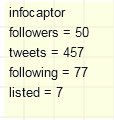
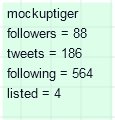
The above screenshots show the metrics in the box widget. You can display them on any widget.
–NOTE if you use Twitter – All Numeric, then the metric_list is just a dummy value as the service call will automatically
bring the values for [“followers”,”tweets”,”following”,”listed”]
You can also specify multiple twitter id like below. There is no theoretical limit on the number of twitter ids you can mention
but every twitter id is an additional call to the Twitter API and the server.
"id_list":["infocaptor","mockuptiger"],

"metric_list":["all"]
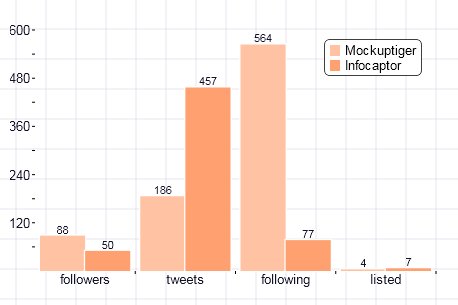
The above bar chart compares two twitter IDs. You can now spy on your competitor’s twitter ID or keep track if you have multiple products or services with individual twitter ID.
You can compare the twitter metrics in a Grid as shown below
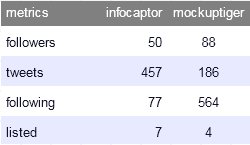
Here is the grid with three twitter ids
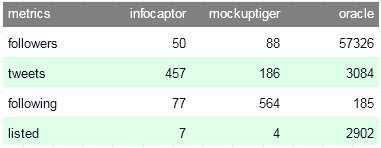
And the Parameters for the above three Twitter ID
"id_list":["infocaptor","mockuptiger","oracle"],

"metric_list":["all"]
Note: the above parameter section is a JSON format so be careful with the quotes and comma.
The above illustrated how to use all the twitter metrics. But if you are interested in tracking only the “following” metric then you can use the below option
2. Twitter – specific metric (e.g followers etc)
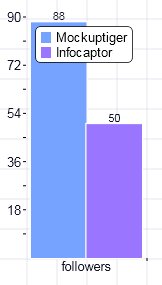
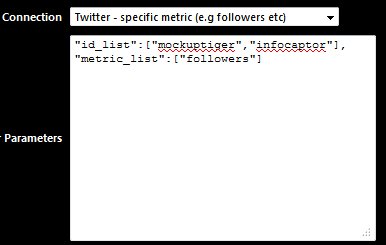
"id_list":["mockuptiger","infocaptor"],

"metric_list":["followers"]