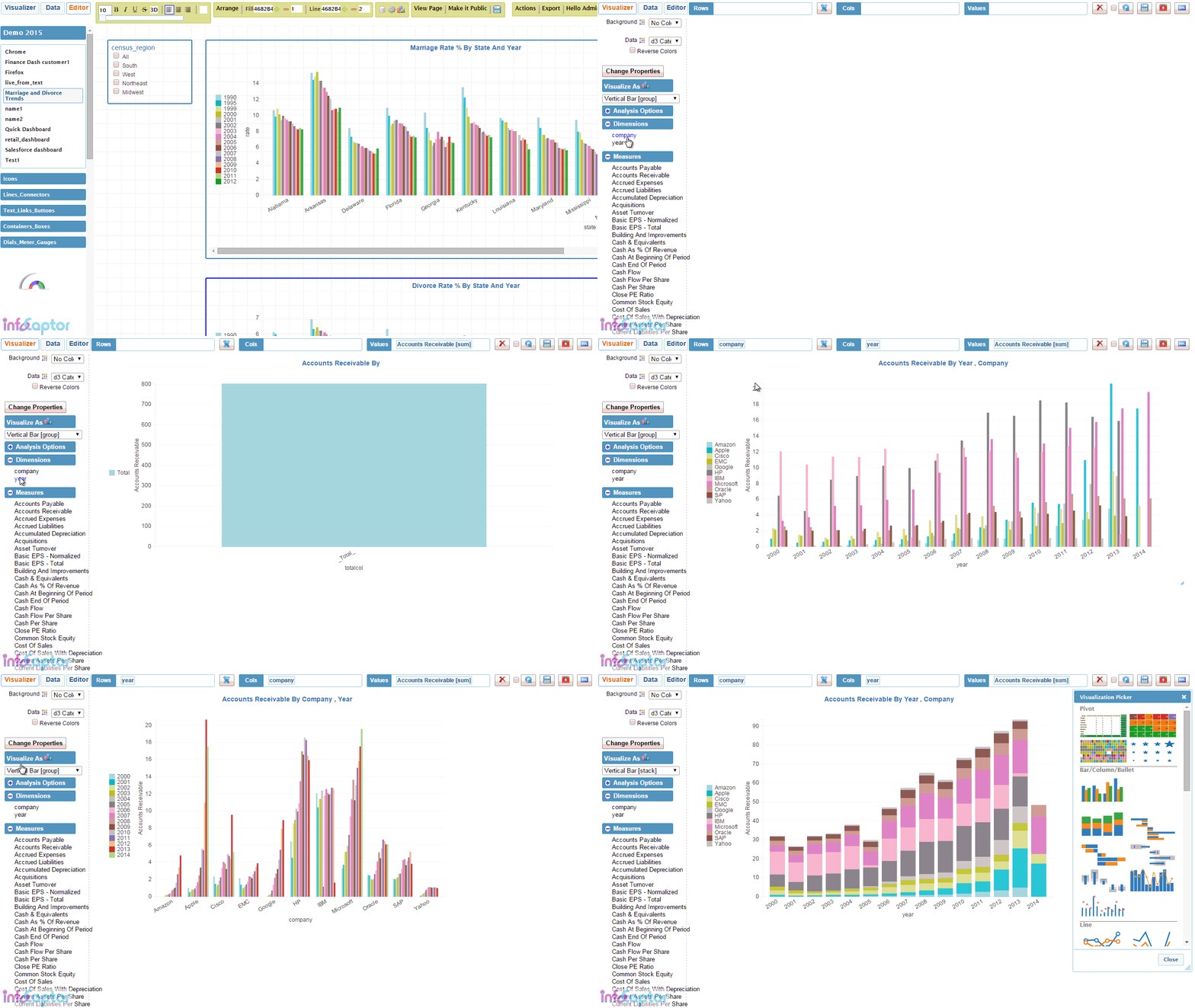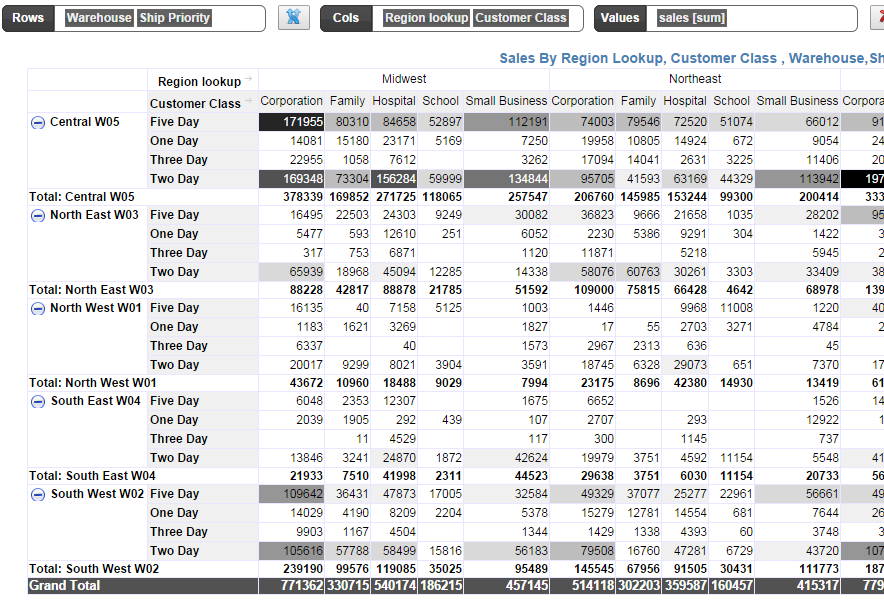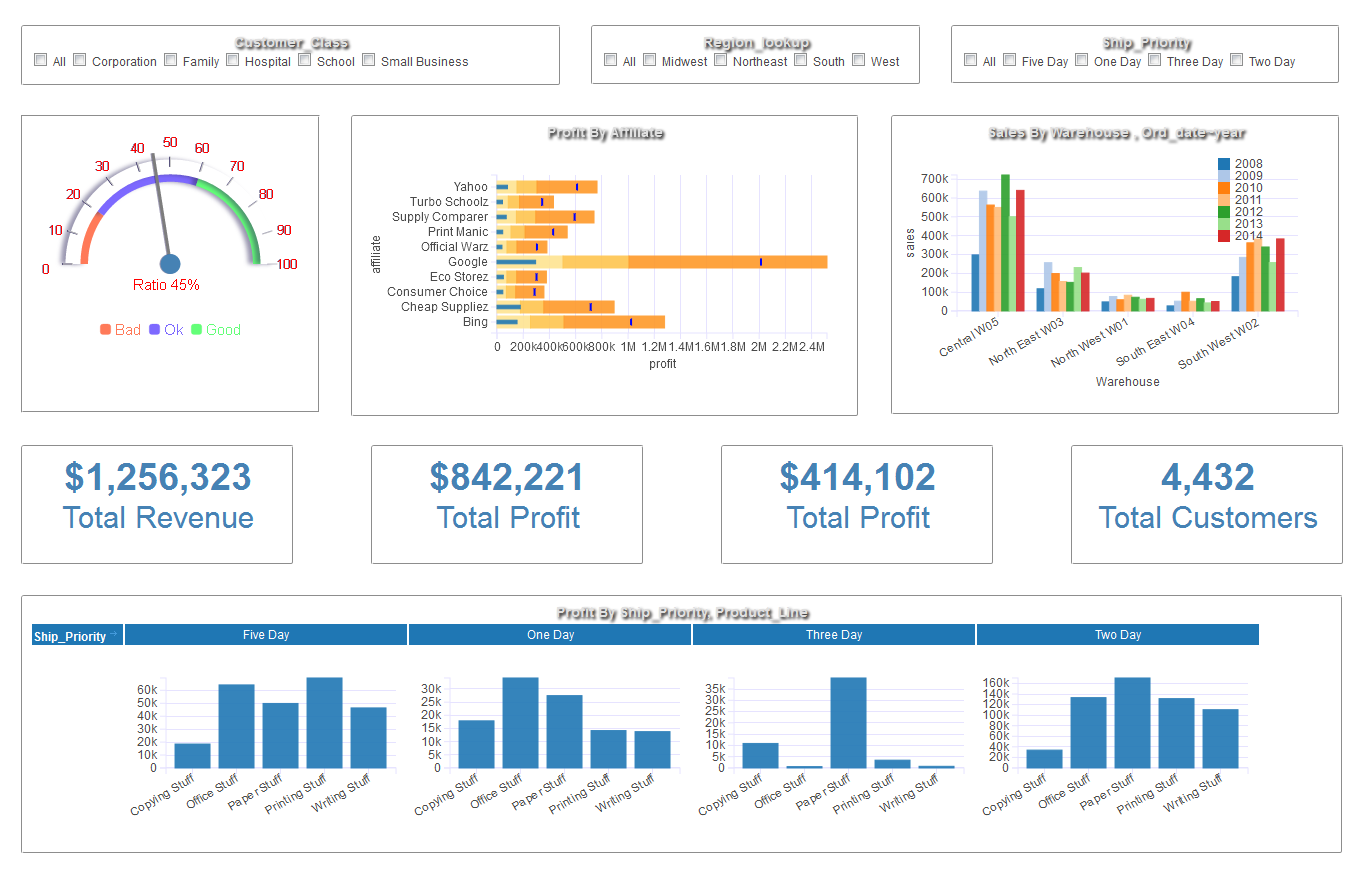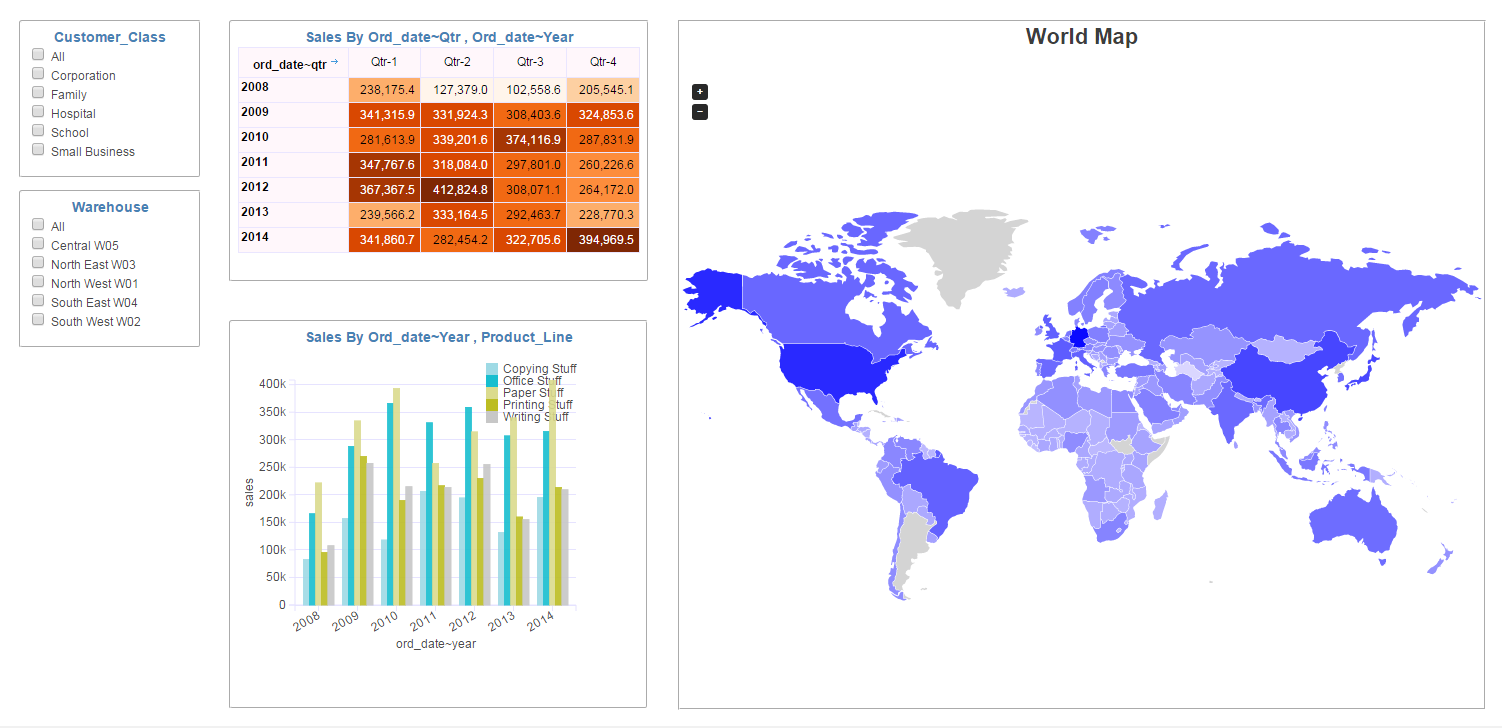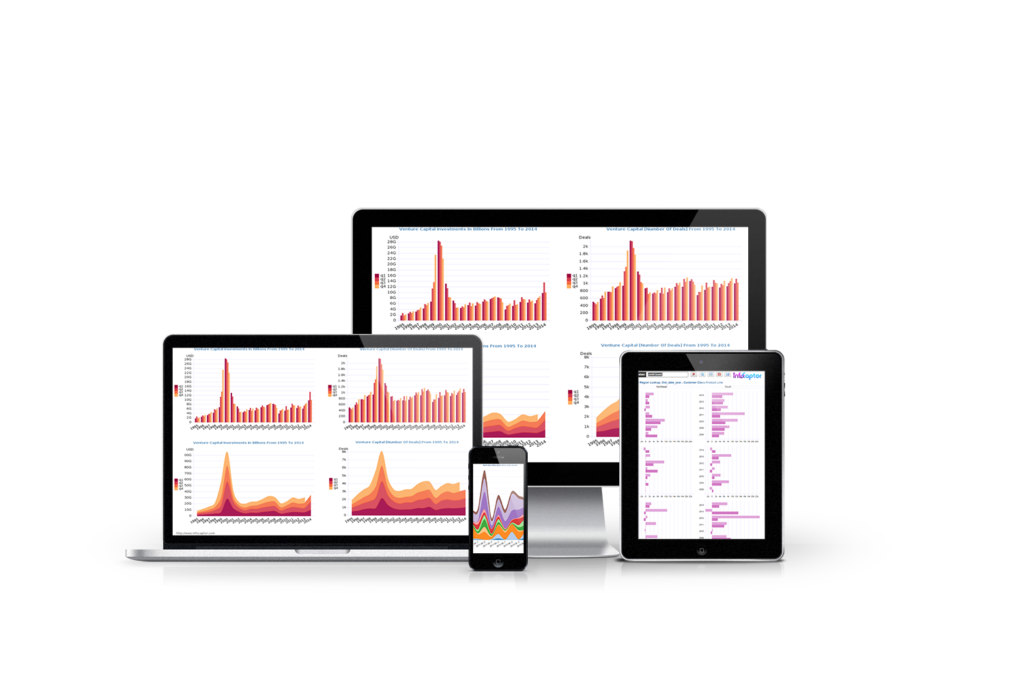
In the new release of InfoCaptor Enterprise, we added some very useful features.
1. Ability to connect to Postgres SQL
2. Ability to connect to Pervasive database
3. Test Database connections before adding them to the system.
Infocaptor works will all types of JDBC and ODBC connections. So if you need to connect to DB2 or say Firebird database, then download the jdbc drivers from the vendors website and place them in the tomcat/lib directory and then use the "Other JDBC" (in figure below)

The only difference between the predefined JDBC connections such as Oracle, SQL Server, MySQL, Postgres and Pervasive is that the jdbc drivers are packaged and the jdbc URL is provided for your convenience. Eventually we will add more database in the jdbc support directly without you having to download the jdbc drivers.
As usual, if you need help with jdbc settings email us (contact@infocaptor.com) anytime.
Test Database connections
This is another important addition on the connections page.
Earlier you had to add the connection and test it on the dashboard to see if the connection really worked. Now you can add the credentials and verify if infocaptor is able to talk to your database.
1. How to Test and connect to Microsoft Access Database

You can use either .mdb or .accdb files for your dashboard. Just provide your access file path, choose appropriate access version and click "Test Connection". Once successfully connected, it will list the table names that are available. Now you can go ahead and click on "Add new Connection Entry".
2. How to connect and use Excel file for Dashboards

In the above figure, you can see it is very similar to access database. Just provide correct path to the Excel file and hit "Test Connection". It will list the valid worksheets that you can use within dashboard.
Note: There is also a better way alternative to use excel or flat files within dashboard.
3. MySQL connection for dashboard
For MySQL, it is best to use the native PHP connection method as it does not rely on Tomcat. So if you are going to build dashboard against just MySQL then no need to setup Tomcat.

As you see in the screenshot, enter the host, port, database name, user and password information. Click on test and you will see all the tables you can use within dashboard.
4. MySQL with JDBC
Here is an alternate method to connect to MySQL with jdbc
As seen below, it is very similar to native php connection. In this case, you provide a proper JDBC URL.

The jdbc URL format for MySQL is jdbc:mysql://<HOST>:<PORT>/<DB>
So we simply replace <HOST> with localhost, <PORT> with 3306 and <DB> with the database name i.e infocaptor_dev
The method to connect for SQL server 2005, SQL Server 2008 and 2012 , Oracle, Postgres SQL, Pervasive is also very similar. Just their respective jdbc URL format is different. As a rule for any jdbc URL, replace the host, port and db variables with appropriate values and you should be able to connect.
And similarly, if you use "Other JDBC", you can refer this article for all other JDBC URL format for various other databases.
5. ODBC Connections
Lastly if you define a DSN entry in the Windows ODBC administrator, you can use that DSN name to connect directly
Here is a screenshot showing how an ODBC DSN entry is created on a windows 64bit machine.
NOTE: There are two different ODBC setups for 64bit machines. Use the one in the SysWOW64\odbcad32.exe

In the above screen, we defined the DSN=northwind_system.
In our infocaptor ODBC connect screen we use the exact same DSN name

We will be adding more convenience links to other databases as we move forward to provide the best "Getting Started" experience.
But if you hit across any legacy database system and wondering if you can make infocaptor talk to it, then please do not hesitate and email us (contact@infocaptor.com). We should be able to help you out in most cases.
Posted in How-to |
Tagged accdb, db2, firebird, Hypersonic, IBM DB2, Informix, InstantDB, Interbase, JDBC-ODBC, mdb, Microsoft Access, Microsoft Excel, mysql, oracle, PointBase, Progress, SAP BW, SAP HANA, slq, sql, sql server, sqlite, sybase, teradata
By default SQL server 2008 is not enabled for remote connection
First you need to enable SQL server for remote connection to avoid the "SQL server connection refused: connect" error.
Assuming your SQLserver is enabled for windows authentication and remote connection we can proceed as below.
1. Install Tomcat as service under the desired login account.
Run the service.bat file as below


2. Once installed, go to services and add the login account

3. Copy the ntlmauth.dll file to any directory that is in the system path. We can put it in the windows/system32 directory
This is needed for windows SSO authentication.
You can go to the infocaptor/dash/system/jtds../x64/sso directory. Choose the appropriate file based on your operating system. (e.g x86 for 32 bit and x64 for 64bit)

4. Create connection within infocaptor
When you define a new connection to use as single signon windows authentication, leave the database user and password blank (empty)

5. Test the connection
Now, go to infocaptor, drag a grid , right click and select data source.
Next, pick the sql_2008_sso connection and click "show tables" in the SQL tab

Success!. The list of tables indicate that infocaptor connected to SQLserver using windows authentication.
Background: InfoCaptor connects to sqlserver via tomcat and tomcat passes the windows credentials to sql server. Make sure you create a windows service account if you decide to use this in any production environment.
Posted in How-to |
Tagged dashboards, jdbc, service, single signon, sqlserver, sqlserver 2005, sqlserver 2008, sqlserver express, SSO, tomcat, windows authentication

Before we start, jump to this Top 500 CEO Compensation Dashboard
This cool visualization is built on top of a curated data of top 500 CEOs listed in order of their annual compensation, direct salary, number of shares, efficiency, rank and age. This list is generated by Forbes.com
This article is split in two parts, first we show what we built and then we will list the steps on how it was built.
When you launch the CEO dashboard you will see on the top, two sets of "Radio controls"
"View by" = CEO Name and CEO company
Next is the "Bubble Measure" = CEO Age, Rank, Efficiency, 1 yr pay, 5 yr pay and number of shares owned.
Here are the different visuals you get when you switch between the different dashboard filters.
Bubble Visualization by CEO Rank (as calculated by Forbes.com)

Forbes.com has applied some algorithm to derive at the efficiency factor for each CEO. Based on this efficiency factor, they have ranked the CEOs.
Now switch the bubble measure to 1 year pay

We can see that the top 20 CEO ordered by 1 year pay/compensation are as follows
1 John H Hammergren, McKesson
2 Ralph Lauren, Ralph Lauren
3 Michael D Fascitelli, Vornado Realty
4 Richard D Kinde,r Kinder Morgan
5 David M Cote, Honeywell
6 George Paz, Express Scripts
7 Jeffery H Boyd, Priceline.com
8 Stephen J Hemsley, UnitedHealth Group
9 Clarence P Cazalot Jr, Marathon Oil
10 John C Martin, Gilead Sciences
11 John D Wren, Omnicom Group
12 James Dimon, JPMorgan Chase & Co
13 Leslie Moonves, CBS
14 Howard D Schultz, Starbucks
15 John C Plant, TRW Automotive Holdings
16 David M Zaslav, Discovery Communications
17 Robert A Iger, Walt Disney
18 Richard C Adkerson, Freeport McMoRan Copper & Gold
19 Timothy M Manganello, BorgWarner
20 Paul E Jacobs, Qualcomm
Switch to 5 year pay

Look who is making the most of 5 year pay.
From the grid we can extract all the CEOs who make atleast 100 million in the total span of 5 years
106 Lawrence J Ellison, Oracle
59 Aubrey K McClendon, Chesapeake Energy
1 John H Hammergren, McKesson
23 John B Hess, Hess
29 William R Berkley, WR Berkley
10 John C Martin, Gilead Sciences
2 Ralph Lauren, Ralph Lauren
14 Howard D Schultz, Starbucks
28 David C Novak, Yum Brands
66 H Lawrence Culp Jr, Danaher
18 Richard C Adkerson, Freeport McMoRan Copper & Gold
8 Stephen J Hemsley, UnitedHealth Group
49 Lloyd C Blankfein, Goldman Sachs Group
17 Robert A Iger, Walt Disney
13 Leslie Moonves, CBS
70 Brian L Roberts, Comcast
134 Hugh Grant, Monsanto
83 Daniel P Amos, Aflac
12 James Dimon, JPMorgan Chase & Co
98 Jen0Hsun Huang, Nvidia
45 Laurence D Fink, BlackRock
333 Mark G Papa, EOG Resources
210 Richard B Handler, Jefferies Group
68 Robert J Stevens, Lockheed Martin
39 Frederick W Smith, FedEx
22 David E I Pyott, Allergan
82 Miles D White, Abbott Laboratories
255 Jeffrey C Sprecher, IntercontinentalExchange
26 Joseph M Tucci, EMC
35 James T Hackett, Anadarko Petroleum
157 Kent J Thiry, DaVita
11 John D Wren, Omnicom Group
79 William H Swanson, Raytheon
102 J Wayne Leonard, Entergy
42 K Rupert Murdoch, News Corp
24 Lew Frankfort, Coach
73 David J Lesar, Halliburton
397 John T Chambers, Cisco Systems
36 Alexander M Cutler, Eaton
6 George Paz, Express Scripts
Now let us check who owns the most shares

And here are the 20 top or so who own the most shares
495 Warren E Buffett, Berkshire Hathaway
106 Lawrence J Ellison, Oracle
178 Sheldon G Adelson, Las Vegas Sands
498 Larry Page, Google
470 Jeffrey P Bezos, Amazon.com
479 Steven A Ballmer, Microsoft
304 Harold G Hamm, Continental Resources
4 Richard D Kinde,r Kinder Morgan
42 K Rupert Murdoch, News Corp
2 Ralph Lauren, Ralph Lauren
347 Michael S Dell, Dell
108 Stephen A Wynn, Wynn Resorts
232 Leslie H Wexner, Limited Brands
39 Frederick W Smith, FedEx
465 Marc R Benioff, Salesforce.com
14 Howard D Schultz, Starbucks
441 Neal L Patterson, Cerner
29 William R Berkley, WR Berkley
496 Andrew D Mason, Groupon
23 John B Hess, Hess
474 Ian M Cumming, Leucadia National
70 Brian L Roberts, Comcast
227 Howard R Levine, Family Dollar Stores
Now let us try to visualize in the more traditional bar charts but apparently more effective.
Jump to this second CEO Compensation dashboard

Most Senior CEOs in the industry

250 Howard Solomon Forest Laboratories
495 Warren E Buffett Berkshire Hathaway
42 K Rupert Murdoch News Corp
178 Sheldon G Adelson Las Vegas Sands
324 Robert G Wilmers M&T Bank
232 Leslie H Wexner Limited Brands
145 Alan B Miller Universal Health Services
32 Mortimer B Zuckerman Boston Properties
2 Ralph Lauren Ralph Lauren
474 Ian M Cumming Leucadia National
108 Stephen A Wynn Wynn Resorts
254 Peter J Rose Expeditors International of Washington
171 Mel Karmazin Sirius XM Radio
53 Allen F Wise Coventry Health Care
406 William E McCracken CA
93 James H Herbert II First Republic California
248 Robert H Benmosche American International Group
106 Lawrence J Ellison Oracle
4 Richard D Kinder Kinder Morgan
39 Frederick W Smith FedEx
367 William Dillard II Dillards
129 James A Skinner McDonalds
Youngest CEOs in the industry

498 Larry Page Google
413 Heather Bresch Mylan
69 Francisco DSouza Cognizant Technology Solutions
412 R Adam Norwitt Amphenol
392 Marc N Casper Thermo Fisher Scientific
105 Marc Holliday SL Green
498 Matthew J Lambiase Chimera Investment
48 Steve Ells Chipotle Mexican Grill
285 John A Hayes Ball
488 Gary S Guthart Intuitive Surgical
489 Michael C Jennings HollyFrontier
321 John A Bryant Kellogg
124 David M Cordani Cigna
123 William C Rhodes III AutoZone
264 Enrique T Salem Symantec
410 Daniel M Delen Reynolds American
463 Brian P MacDonald Sunoco
347 Michael S Dell Dell
465 Marc R Benioff Salesforce.com
417 Gregory T Lucier Life Technologies
339 Thomas J Folliard CarMax
185 Gregory L Ebel Spectra Energy
470 Jeffrey P Bezos Amazon.com
343 W Benjamin Moreland Crown Castle International
115 John P Daane Altera
206 Darren R Jackson Advance Auto Parts
344 J Paul Raines GameStop
265 Brad D Smith Intuit
455 Luther C Kissam IV Albemarle
459 Louis J DAmbrosio Sears Holdings
So this illustrates how a bare bones tabular data was visualized to bring out some meaningful insigts.
Now let us see how this dashboard was built from scratch.
1. Data collection
First we collected the data from http://www.forbes.com/lists/2012/12/ceo-compensation-12_rank.html
and then copy pasted them into Excel. We had to massage, trim and truncate to strip out excess html codes and just keep the text part. One trick we stumbled was when you copy data from html page, it is best to paste it first into a plain text editor like notepad++ and then copy to Excel.
2. Upload data into InfoCaptor Datawarehouse
Check this tutorial on how to upload flat files or excel data into SQL database/ data warehouse
Once the data is loaded into the database we are ready to build our dashboard.
3. Bubble visualization
The technique to build the bubble viz is illustrated here Build bubble viz using SQL table data
4. Add Dashboard parameters and filters
Once you have the basic visuals done, you can add the dashboard radio controls to change the SQL into dynamic one.
The dashboard parameters, when you select a radio value, that value is passed as a column to the SQL underneath and then it generates a new data set on the fly. This data is then passed to the d3js script for the final visuals.
Here is the SQL query
select param<html_radio_d5>, param<html_radio_d4> ,one_yr_pay,five_yr_pay,shares_owned,
age,efficiency,rank
from ceo_pay_2012
The first two columns are dynamic and based on the dashboard filters. As the user selects different values, the sql changes and accordingly fetchs the columns in that order.
Hope you enjoyed the tutorial and let your imagination go wild. Turn that boring Excel Grid into something fancy!
Posted in dashboards, How-to |
Tagged business dashboards, CEO dashboards, CFO dashboards, CIO dashboards, d3js, d3js pack layout, data visualizations, data warehouse, datawarehouse, drill down reports, Excel Dashboard, performance dashboards
The front page of any company or organization is a very significant piece of that entity's web presence.
The question whether the front page does its job depends on
1. What message it is trying to deliver to the audience.
2. How quickly it delivers the message to the audience.
3. How forceful the message is.
Sometimes, due to bad copyrighting, the front page may deliver an unexpected message and the question comes to mind "how often do we analyze our front page"
As a very interesting experiment at Dashboardzone, all the business intelligence vendors are put through a text analysis evaluation and the results are visualized into bubble word clouds
Here is the table that lists all the BI vendors and the top three words that bubble up on their front page.
| vendor |
words |
first |
second |
third |
| SAP |
270 |
sap |
software |
business |
| IBM Cognos |
169 |
cognos |
business |
software |
| Dundas |
149 |
dundas |
dashboard |
dashboards |
| Infocaptor |
184 |
dashboard |
infocaptor |
easy |
| Information Builders |
272 |
management |
data |
business |
| Microstrategy |
132 |
free |
microstrategy |
software |
| Logixml |
137 |
analytics |
logi |
product |
| Oracle |
243 |
oracle |
business |
learn |
| Tableau |
139 |
data |
analytics |
easy |
| Pentaho |
127 |
data |
pentaho |
analytics |
| Qlikview |
139 |
qlikview |
contact |
support |
| SAS |
197 |
sas |
analytics |
business |
| Sisense |
185 |
data |
sisense |
prism |
| VisualMining |
160 |
performance |
business |
software |
| Chartio |
41 |
data |
chartio |
product |
| Gooddata |
144 |
gooddata |
bash |
data |
| Jaspersoft |
243 |
jaspersoft |
analytics |
2013 |
| Tibco Spotfire |
178 |
spotfire |
tibco |
data |
And here is the snapshot of all the visuals together

Since we released the free bubble cloud generator, the service has been sighted at lot of interesting places.
Lot of people have analyzed their linkedin pages, individual web pages and their vacation trips.
Hope you find a good use for this bubble visualizer and send us a link of your creation.
Posted in dashboards, news |
Tagged bi vendor text evaluation, bubble cloud, d3js, dashboard comparison, dashboard reviews, dashboard vendor evaluation, infocaptor review, page analysis, reviews of dashboard vendors, seo analysis
Posted in dashboards, DB2, Excel, Finance Dashboards, GL, Human Resource, MySQL, Oracle, quickbooks, SQL Server |
Tagged access dashboards, beautiful dashboards, bi dashboards, bigdata, bigdata dashboards, bugs dashboards, business dashboards, ceo dashboard, cfo dashboard, clinical dashboard, crm dashboard, d3js dashboard, dashboard charts, dashboard examples, dashboard graphics, dashboard kpi, dashboard samples, data visualizations, erp dashboards, example dashboards, Excel Dashboard, excel dashboards, finance dashboard, google analytics dashboard, help desk dashboard, inventory dashboard, it dashboard, javascript dashboard, jquery dashboard, kpi dashboards, manufacturing dashboards, oracle dashboards, performance dashboards, quickbook-dashboards, real time dashboards, salesforce dashboard, shop floor dashboards, social dashboard, social kpi, social metrics, sql dashboard, sqlserver dashboard, supply chain dashboard, visualizations, web analytics dashboard
Previously we saw how you can visualize your database information into bubbles
Now we are introducing this cute little service (Bubble My Page) that instantly visualizes any web page into bubbles of words tightly packed together. You can simply provide any website URL or individual page link and the service will analyse the words for you and show a nice word cloud bubbles. This is very similar to building a word cloud but the difference is that the bubbles represent the density of the word in the word bubble cloud.
At the bottom of the page it also provides 3 metrics that you can use for SEO purpose. In search engine optimization, lot of emphasis is put on the keywords and the number of times you use in the page.
The bubble word cloud instantly tells which words are overused and underused. It also gives a visual clue if you are doing any kind of keyword stuffing.
The words are placed in the center and then they are placed in an outward spiral. All words in a string a placed next to each other so you can clearly see if there is a proper flow in your text.
It displays the count or occurence of the words, good density ratio and Gross density ratio.
Certain things to keep in mind
- Only the first 100,000 bytes are read from any page, if your page is longer than 100k bytes then the rest of the content is ignored
- All words less than 2 letters are ignored
- Gross density is based on the total words including the 2 letter words. (word count/total number of words on the page)
- Good Density is based on the number of words displayed in the bubble visualization. (word count/total number of words selected for visualization)
Click here to use the Keyword Density Tool and visualize text into bubble word cloud
Posted in Uncategorized |
Tagged d3 bubble pack layout, dashboard samples, example dashboards, keyword density, keyword SEO, kpi dashboards, SEO, word bubble cloud, word cloud
Previously we saw how to build D3js Analog clock on the dashboard
In the same note, we dig deeper and now take our data from database tables and visualize into pretty bubbles.
Here is how the tabular data looks like
Brazil 5,197.89
Argentina 702.69
France 1,025,156.84
Germany 2,604,893.08
Saudi Arabia 628.89
Denmark 598,323.01
Singapore 909,996.22

And this is what we get the final result as

You can check the complete dashboard visualization here
https://my.infocaptor.com/dash/mt.php?pa=rename_new_510da16b539c7
Here are the steps to produce this kind of visualizations. In D3js it is called the bubble pack layout. Leaving the technicals of d3js aside we will follow the simple steps to get the beautiful bubbles.
If you hover your mouse you can see details of the numbers associated with each bubble.
Data Source: We used the following Excel file as our data source. sales_data_excel_file
1. We upload the data to our personal cloud warehouse using this method
2. We use the below SQL to get summary data
select country_name,sum(amount_sold) total_amount
from sales_data
group by country_name
3. We drag the custom draw widget

4. In the data source we select personal cloud and add the following SQL

5. In the javascript section we copy paste the following javascript file.
Bubble pack javascript with new tool tips (version 3)
Bubble pack javascript d3js code

6. Click OK and you will see the bubbles. That is it!
NOTES:
1. Just make sure whatever data you want to visualize, the first column is the category or the dimension value.
2. The second column should be the numeric or the metrics.
3. You can have more columns in your SQL but only the first two columns will be considered.
Final Dashboard : https://my.infocaptor.com/dash/mt.php?pa=rename_new_510da16b539c7
Posted in Charts, dashboards, How-to |
Tagged bubble dashboard, bubble pack layout, bubble visualization, d3js, dashboard examples, dashboard samples, example dashboards, hierarchical layout, kpi dashboards
This is a fun visualization using the power of D3 library
InfoCaptor has this custom draw widget that lets you embed any HTML and external javascript. Using either the HTML widget or this custom draw widget we can use external libraries to build some cool visualizations.
The HTML widget is pure static, means whatever html you feed it will take and display in the page.
The custom draw widget is very similar to html but it has added advantage. It has access to the data from the connection service.
So practically you can query your database, get the data and feed to the d3js library for building cool visualizations.
Using the awesome d3 library we built this clocks, analog clock displays that can be used on any dashboard page, one for each timezone.

Version 1 : Here is the d3 analog clock dashboard
Version 2 : Here is the d3 analog clock dashboard - part 2
The clock code is adapted from this great tutorial on d3 clock - ericbullington.com
Get the Javascript Code for the analog clock
Version 2

https://my.infocaptor.com/dash/mt.php?pa=world_clocks_using_d3_part2_511031bc87e14
Here is a quick video on how to add clock visualization to your dashboard
Posted in dashboards, How-to |
Tagged d3 visualization, d3js, d3js clock, d3js dashboard, dashboard clock, dashboard examples, dashboard samples, example dashboards, javascript dashboard, jquery dashboard, kpi dashboards
Following steps will illustrate how to migrate dashboards from one infocaptor installation to another.
This applies to the scenario for migrating dashboards from DEV to TEST or from TEST to Production enviornments.
You may also use these steps to clone existing dashboards.
In this tutorial we will migrate the following HR dashboard

Each of the widgets on the dashboard is using the following connection

In the target enviornment, you can create the connection with the same handle as the source. This will ensure that the widgets will work after the dashboard migration. If the connection handle name is different then the only drawback is that you will need to go into each widget, right click and modify the data-source to point to the new connection handle.
In the Source system, follow these steps
1. Make sure no objects are selected
2. Go to the menu Export > Export Page/Selected Objects

The entire dashboard is exported to text (json format)

Copy this text.

You may save this in a text file and forward that text to your admin who has access to the production or target system. This text file can also be added to your source control system.
On the Target System
1. Create a blank new dashboard page

2. Go to the menu Export > Import Page

3. Paste the text contents that you exported from the source system

Notice that the entire text is pasted as single line.
4. Click on Import
Here is the imported dashboard

The blue lines around the widgets indicate they are all selected. Click any where on the canvas and they all will be de-selected.
This completes the dashboard migration.
NOTE: If you use dashboard filters/parameters then you will need to check each widget and point to the new names.
Posted in How-to |
Tagged export dashboards, import dashboards, infocaptor dashboard migration
Someone on Reddit posted a summary of counts of AMA by category.
The counts are shown in this thread

Let us see how quickly we can visualize this data?
Step1 : We copy the data and paste into Excel
Inside the browser, we select the text, right click and copy the text

We then paste the data into Excel
Step2: Split the single column into two columns

In the text to columns wizard we give the ":" colon as the seperator

Step 3: Copy the columns and Transpose

Copy the contents of the two columns
Next, select another cell on the same sheet, right click and select "Paste Special"


Select 'Transpose' in the paste special options. Click OK

In the last cell just, create a formula to concatenate all the values into a single cell
=H1&","&I1&","&J1&","&K1&","&L1&","&M1&","&N1&","&O1&","&P1&","&Q1&","&R1&","&S1&","&T1&","&U1&","&V1

Copy the formula and paste it for the below row too. Now we have all the data in two cells
Login to InfoCaptor Dashboard
Create a New page and drag the Pie chart

Right click on the chart and select 'Edit Text'

Paste the Excel data here

Prefix the first line with "lables:" and the next line with appropriate data name, in this case "Reddit AMA:" (see below)

Important: When you copy/paste from Excel, it adds blank lines. Make sure you delete any extra lines. The sure way to know that there are no blank lines is that the cursor does not go to the next line when you press down arrow.
Here is the final chart

The chart took under 15 mins from data scraping, excel merge to the final presentation but this tutorial took around 60 mins to prepare
Reddit AMA Visualization - Pie and Bar chart comparison
Posted in Charts, dashboards, How-to |
Tagged dashboard, dashboards, pie chart, reddit, reddit ama